Compare data recovery solutions for windows
See all windows solutions
disk drill windows icon
4.67

Also worth considering

Promo
4.67

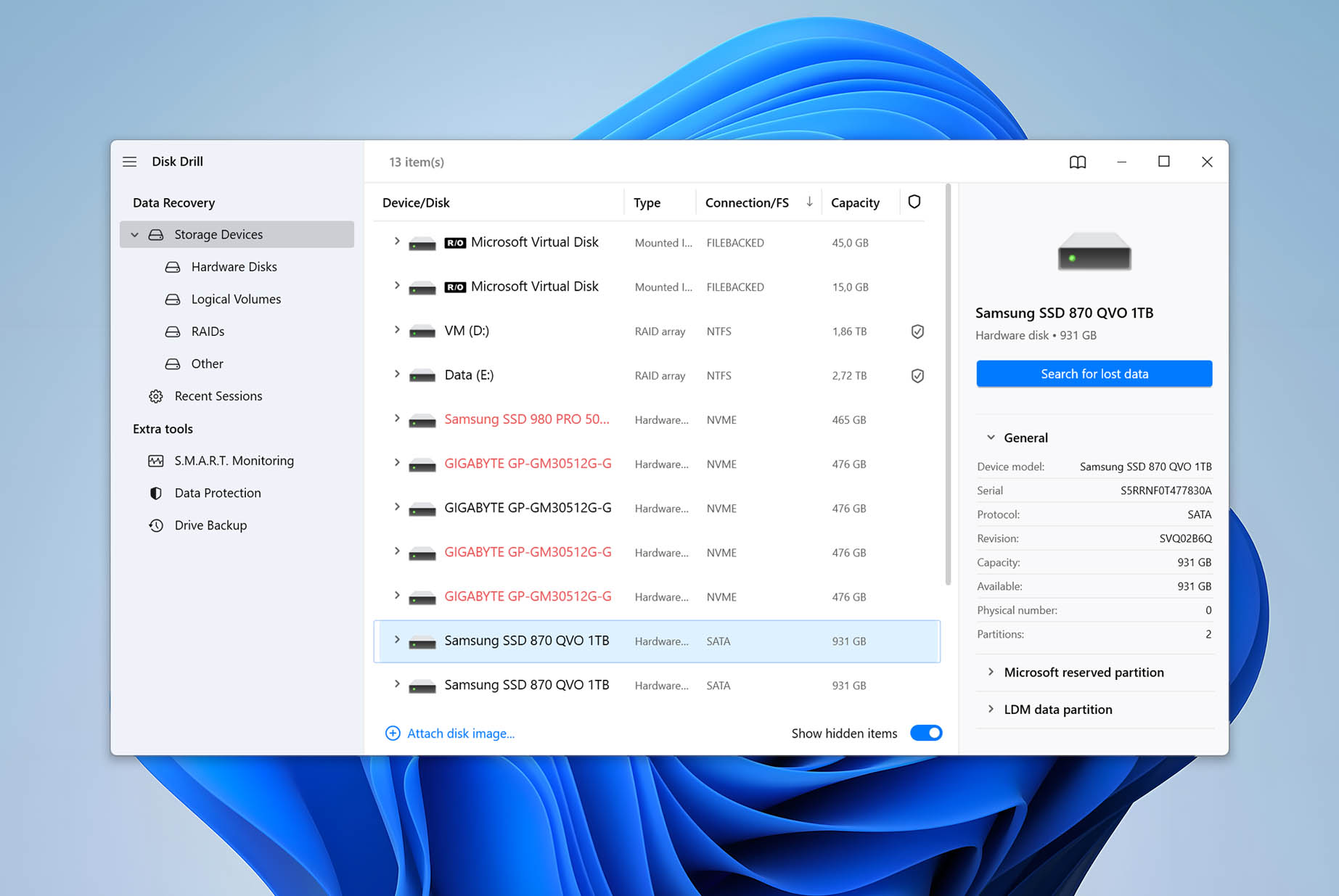
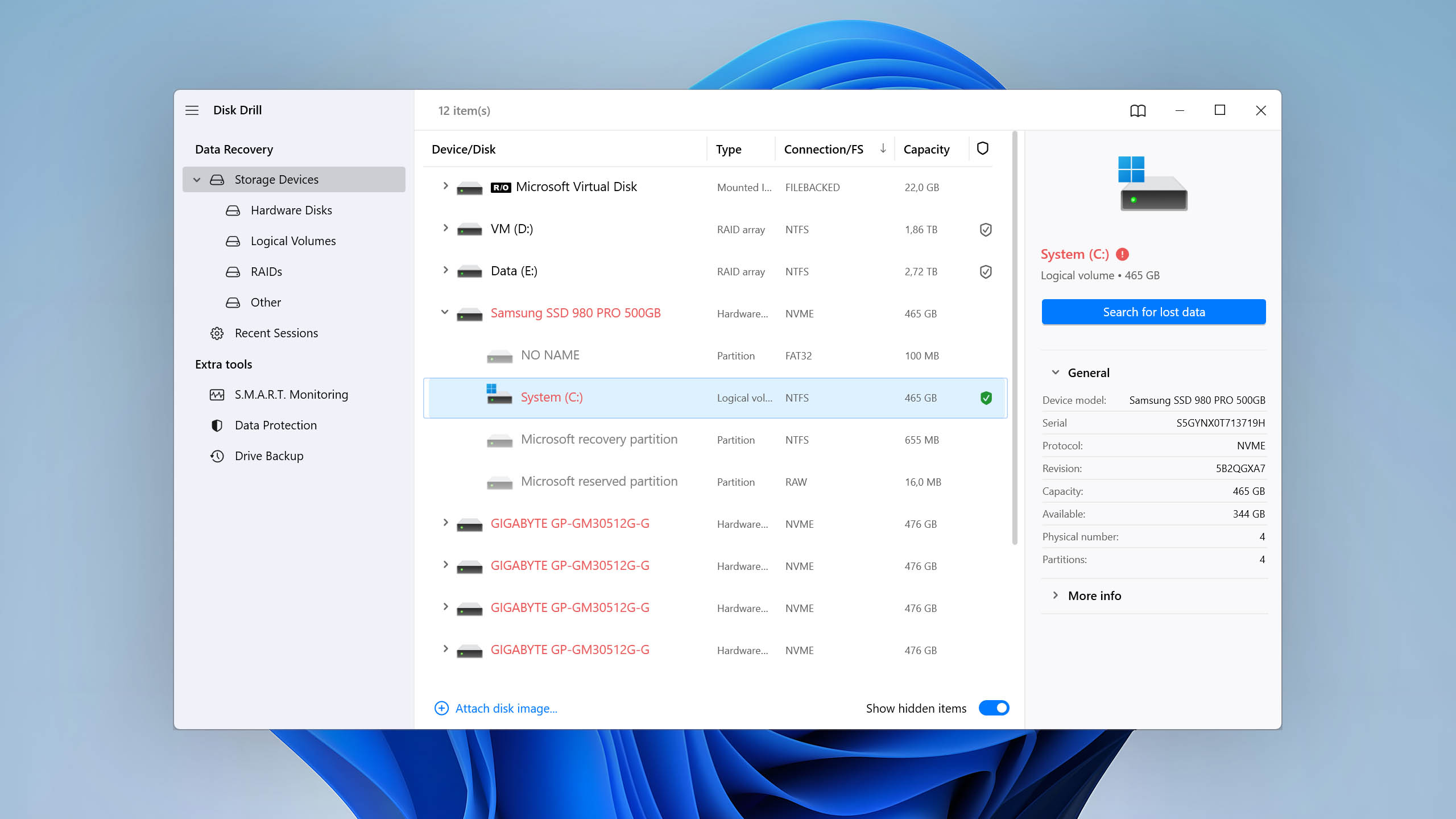
The Windows version of Disk Drill empowers regular users to reliably recover all kinds of lost data with a few simple clicks.

Read full review

Platform

Windows

Version

6.2.1278

Last Release

9th Mar, 2026

Requirements

Windows 10-11 (64-bit)/11 (ARM)

Visit developer website Download for Win SPECIAL OFFER • SAVE 15%

Pros

  • Advanced Camera Recovery (ACR) module. ACR is a new feature that can reconstruct fragmented video files from action cameras, drones, and dashcams, supporting 150+ camera models from major brands.

  • Two for one. When you buy Disk Drill for Windows, you also unlock Disk Drill for Mac.

  • RAID Array Recovery. The latest Disk Drill for Windows can recover RAID arrays including 0, 1, 5, 6, 10, 1E and JBOD.

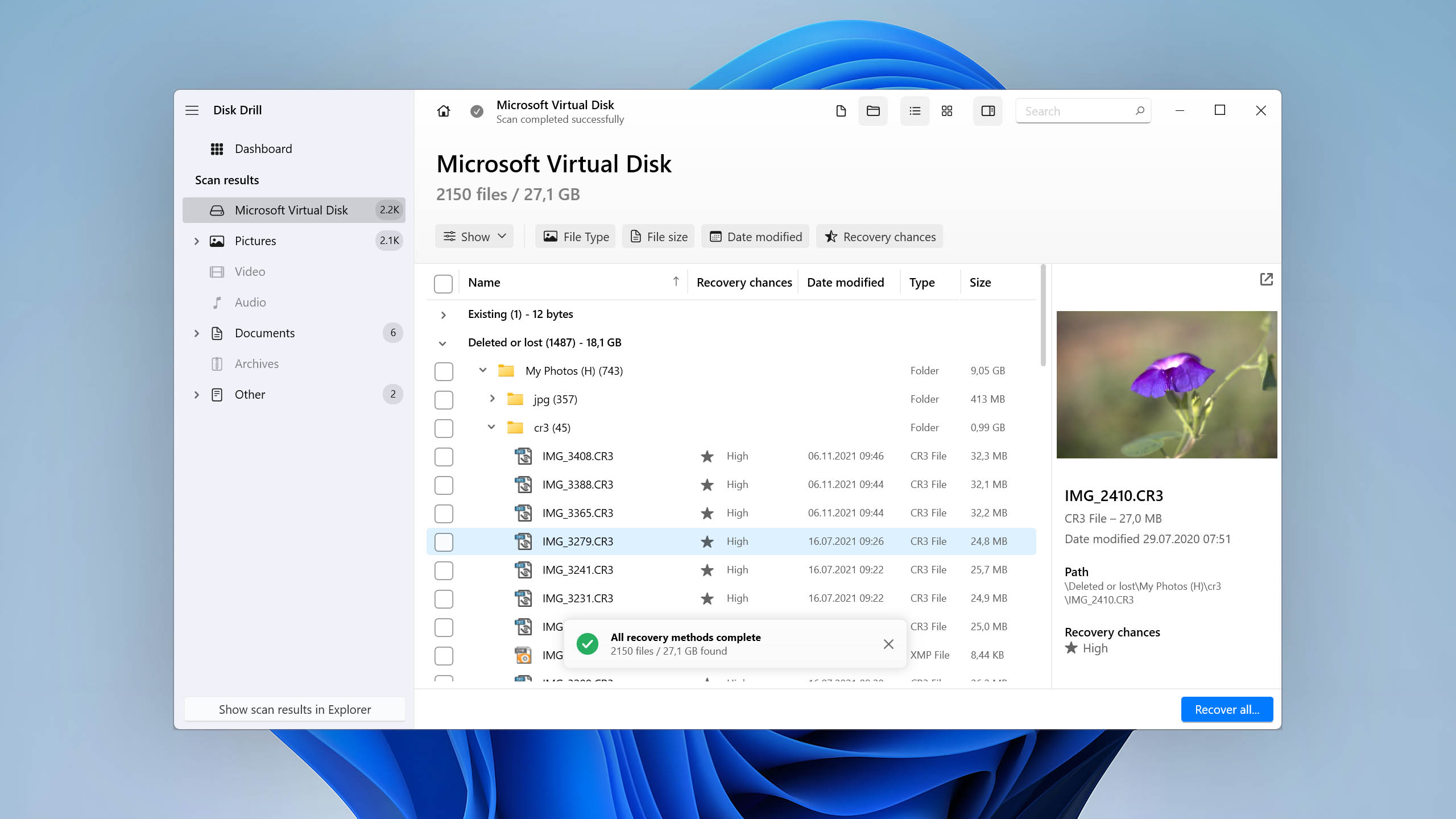
  • Organized scan results. Disk Drill categorizes scan results into three main categories (Deleted, Existing, and Reconstructed) and offers advanced filters for easier searching.

  • Integrated hex viewer. Power users can now inspect raw disk and partition data in hexadecimal format, which is useful, among other things, for forensic analysis and low-level troubleshooting.

  • Usability and performance improvements. Disk Drill 6 introduces noticeable optimization under the hood. Scans can complete up to 25% faster, while memory usage during standard operations drops by roughly 20%. Alongside these performance gains, the interface feels more responsive, with faster preview loading and recovery chance estimates.

  • Windows Storage Spaces recovery. Disk Drill offers support for Windows Storage Spaces (Simple, Two-way mirror, Three-way mirror, and Parity).

  • Expanded file system support. Disk Drill 6 for Windows adds native recovery support for Apple-formatted drives (you can scan APFS and HFS+ disks directly on Windows without third-party drivers). It also introduces improved recovery algorithms for Microsoft’s Resilient File System (ReFS).

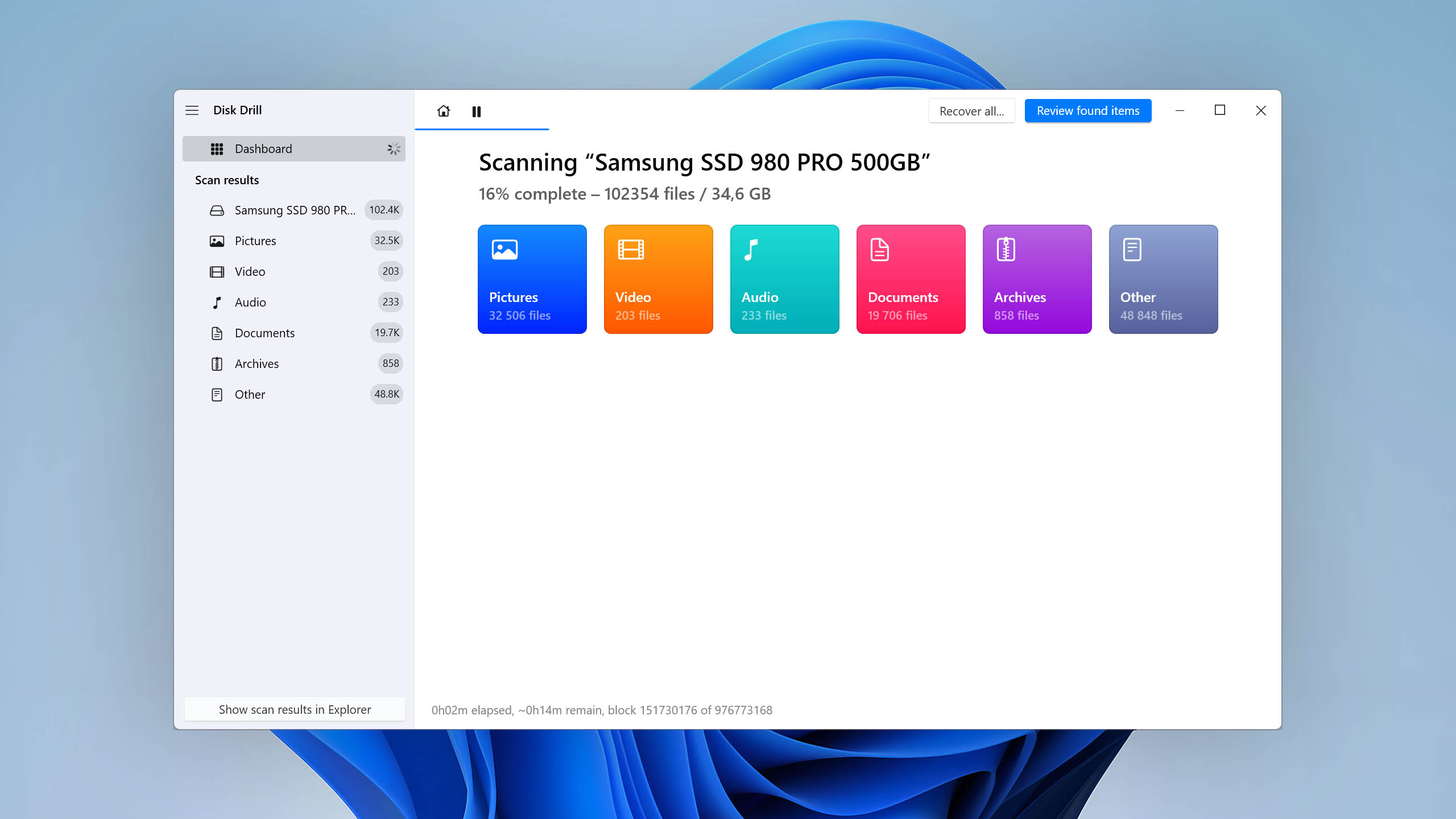
  • Visualization of the scanning process. The scanning process is visualized in real time, with information about the number of scanned files and the time remaining available at a glance.

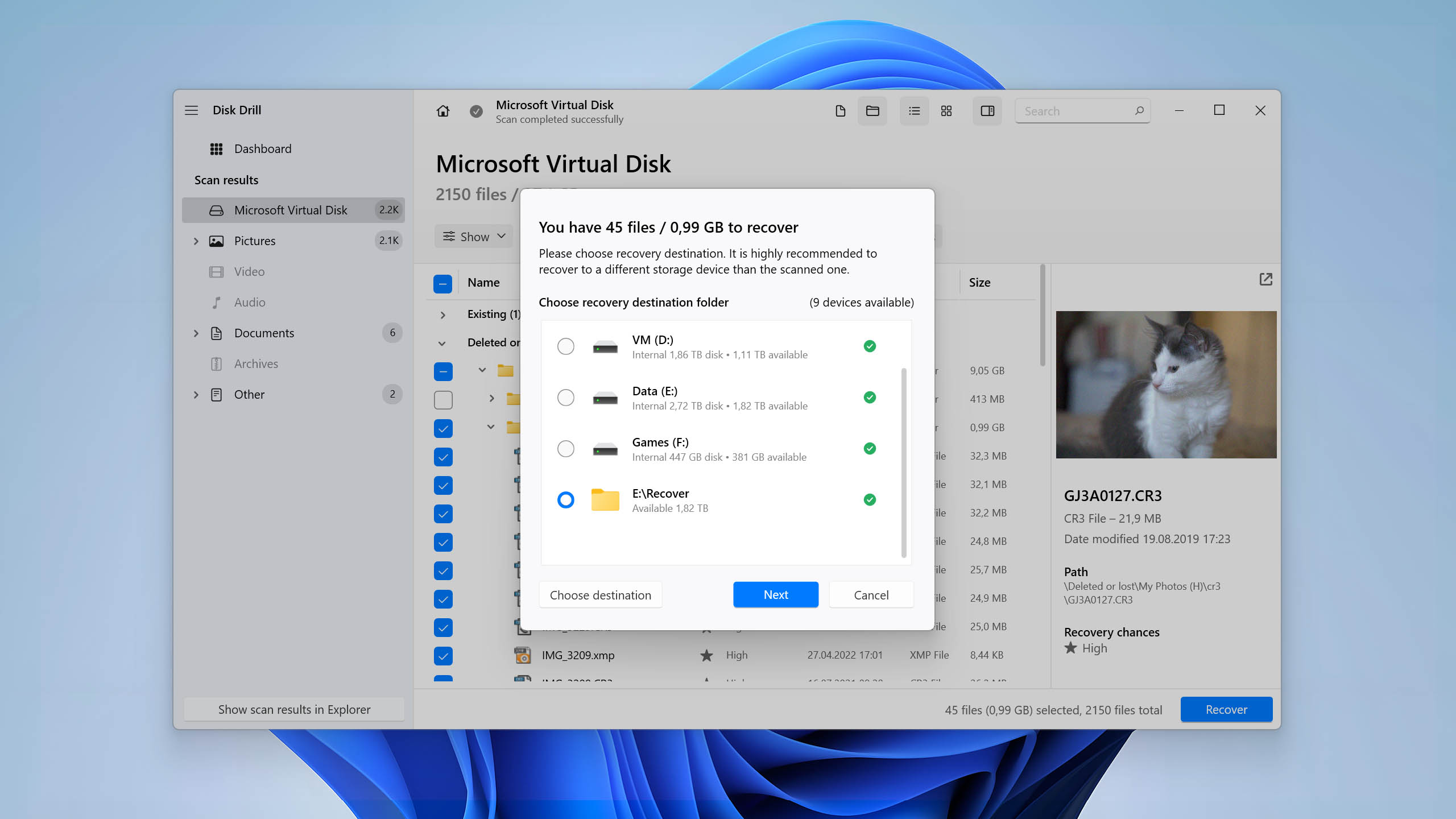
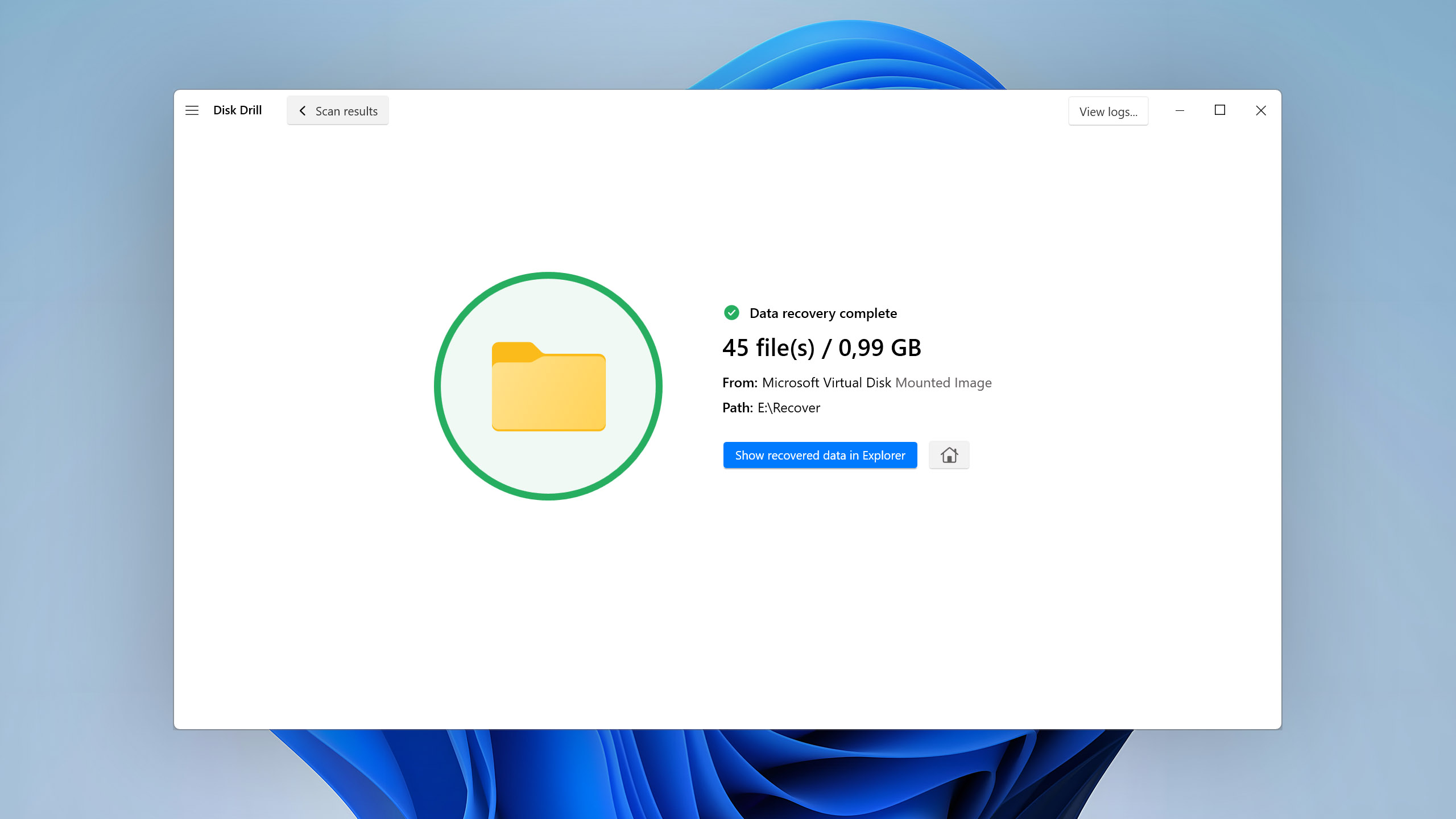
  • Mount results as a virtual disk. The results of all scans can be mounted as a virtual disk and browsed using File Explorer.

  • Network recovery capable. Disk Drill 6 expands its remote recovery features by discovering and scanning more network storage devices over the local network. It now supports secure SSH (Secure Shell) connections, allowing you to connect directly to SSH-enabled NAS (Network Attached Storage) units as well as Linux or macOS machines. Once connected, Disk Drill can treat attached RAID arrays as single logical structures, which makes it possible to analyze and recover data remotely.

  • File previews. The program can generate previews for all file formats supported by Windows.

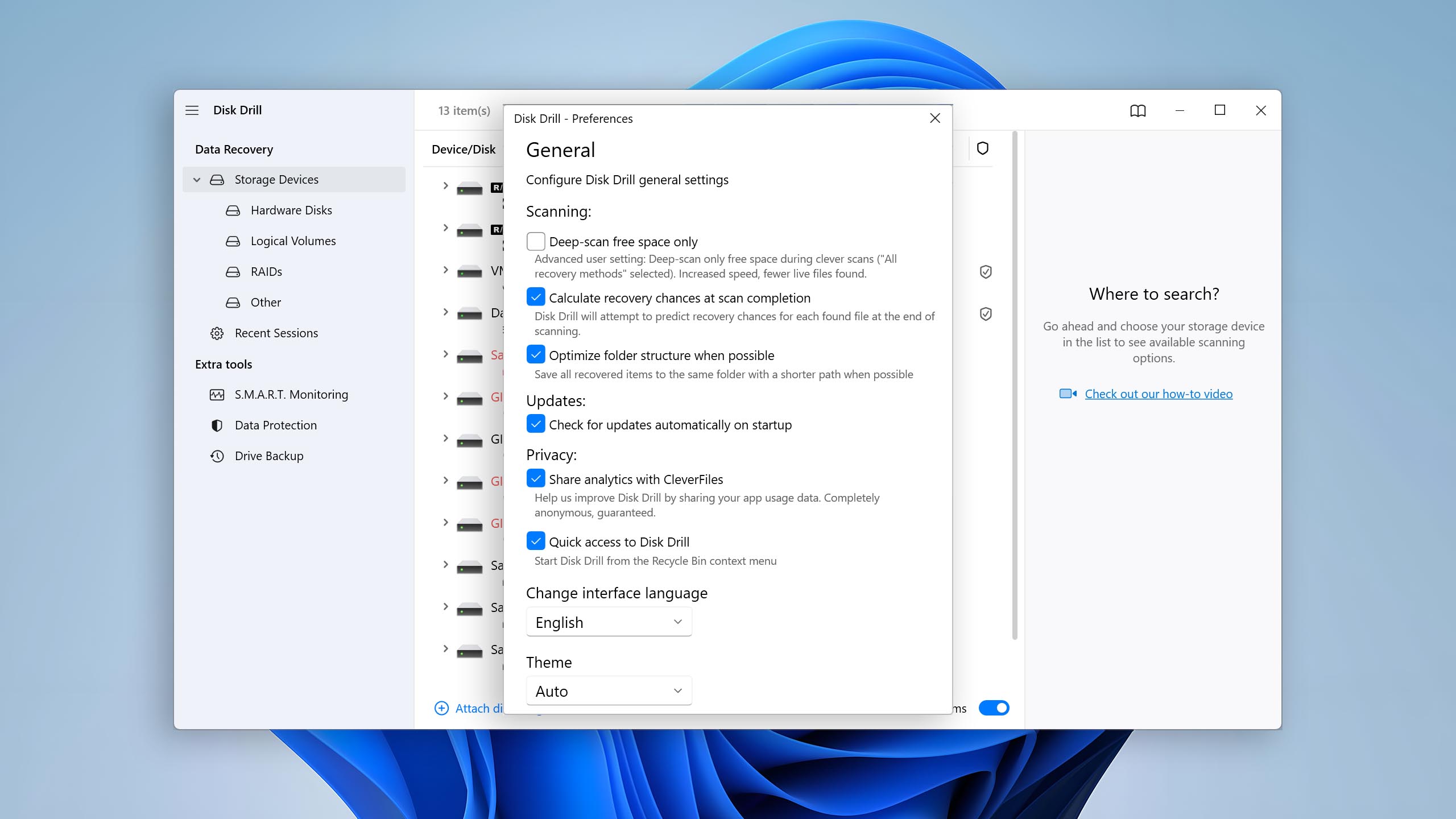
  • Dark mode support. Disk Drill includes a built-in dark theme. It’s great for late-night recovery sessions, but it’s just as useful for anyone who finds dark mode easier on the eyes or simply prefers a low-glare workspace.

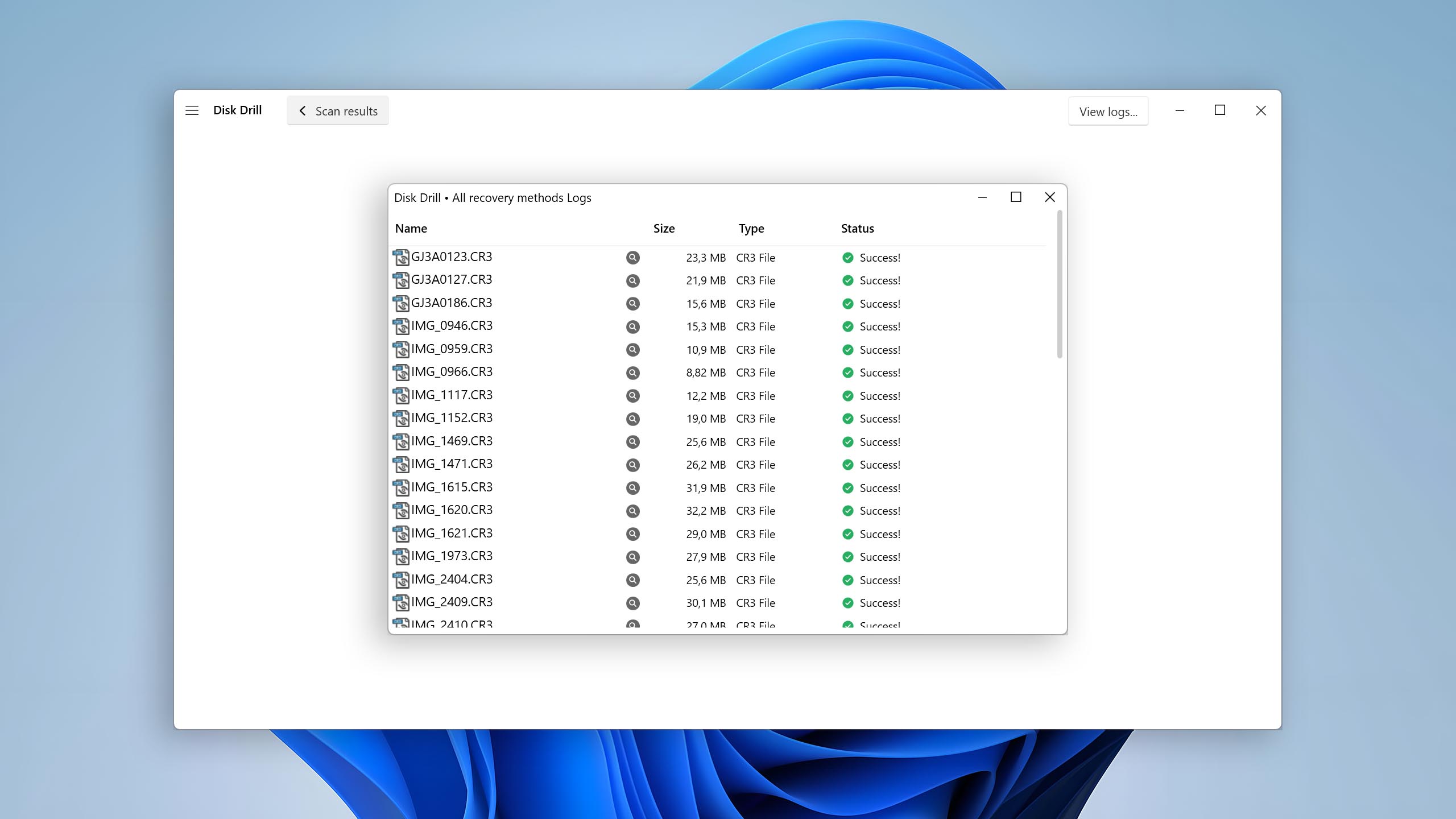
  • Raw photo support. The raw image scanner is one of the best on the market because it can detect the largest number of raw file formats.

  • Multiple view options. There are 4 types of view options: files, files and icons, folders, and folders with icons.

  • Raw video support. Disk Drill for Windows excels at detecting professional raw video formats like Apple ProRes or BRAW.

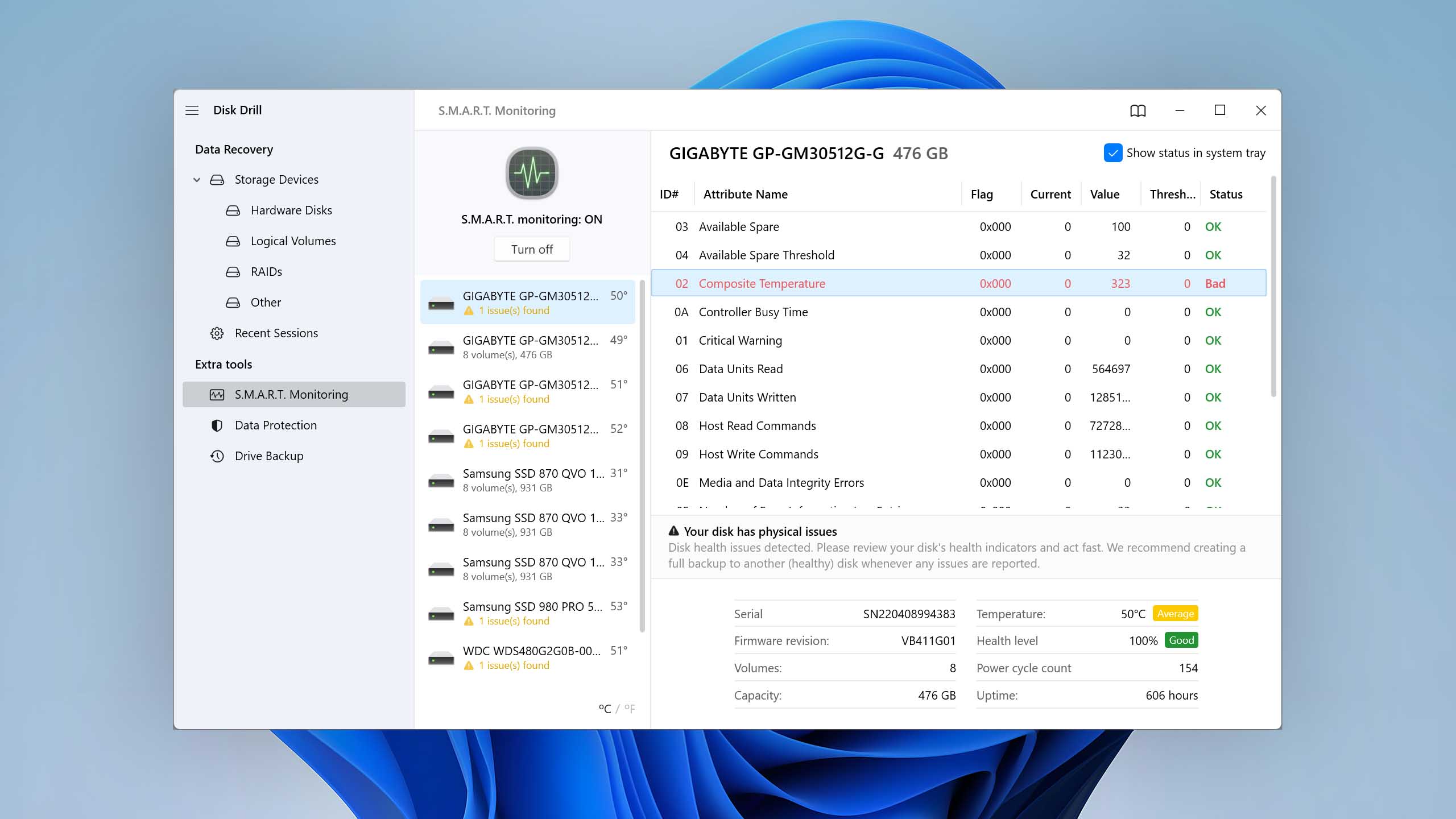
  • S.M.A.R.T. Supports reading S.M.A.R.T. data from all compatible devices.

  • Linux file system support. Disk Drill can recover the original file structure even after formatting or partition loss on Linux systems. EXT3/EXT4 recovery has been enhanced as well, including better handling of symbolic links and preserved directory relationships where metadata is still available.

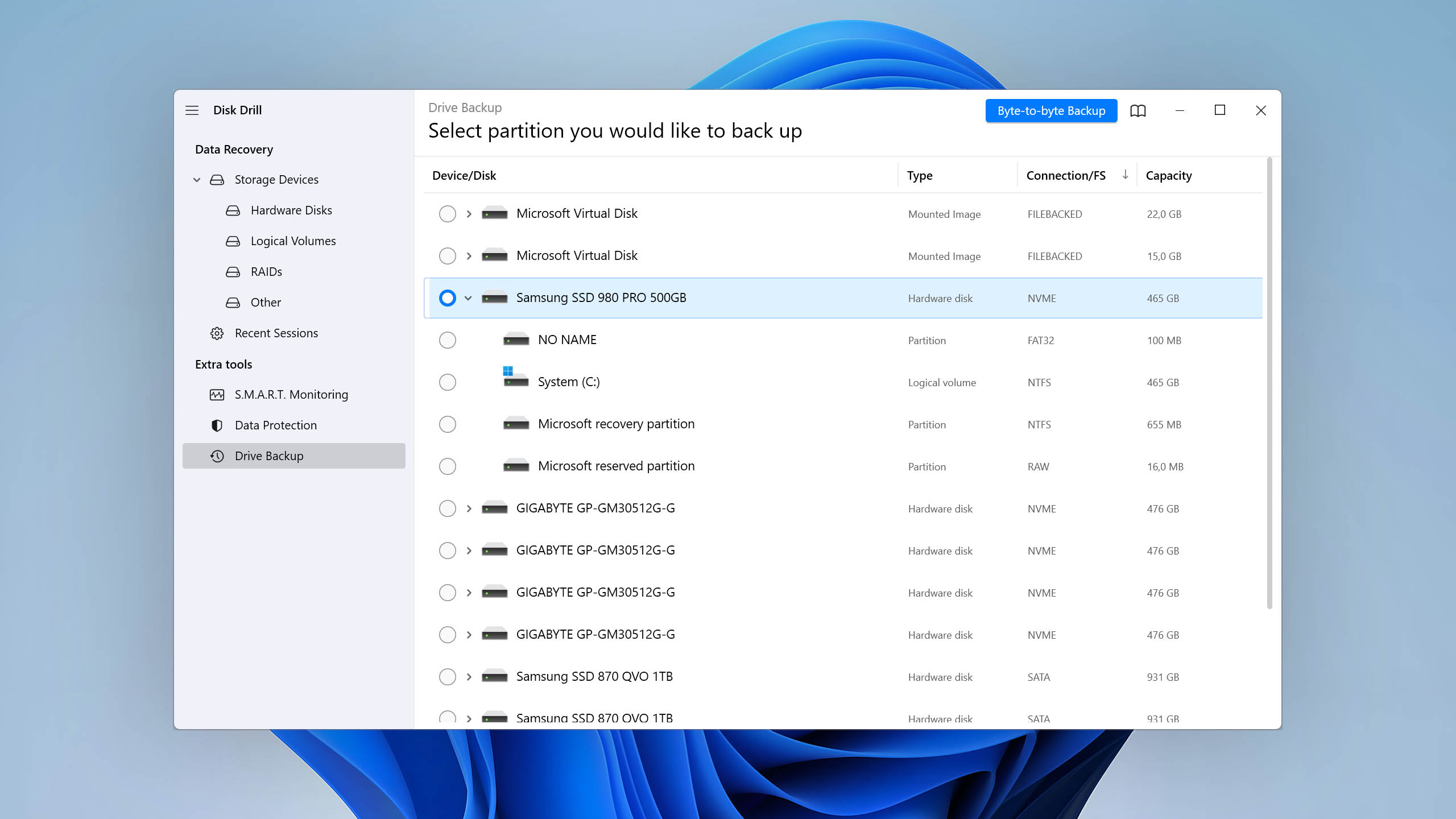
  • Byte-by-byte disk copies. The completely redesigned byte-to-byte backup module in Disk Drill 6 uses intelligent multi-pass technology to handle unstable or physically damaged drives more effectively.

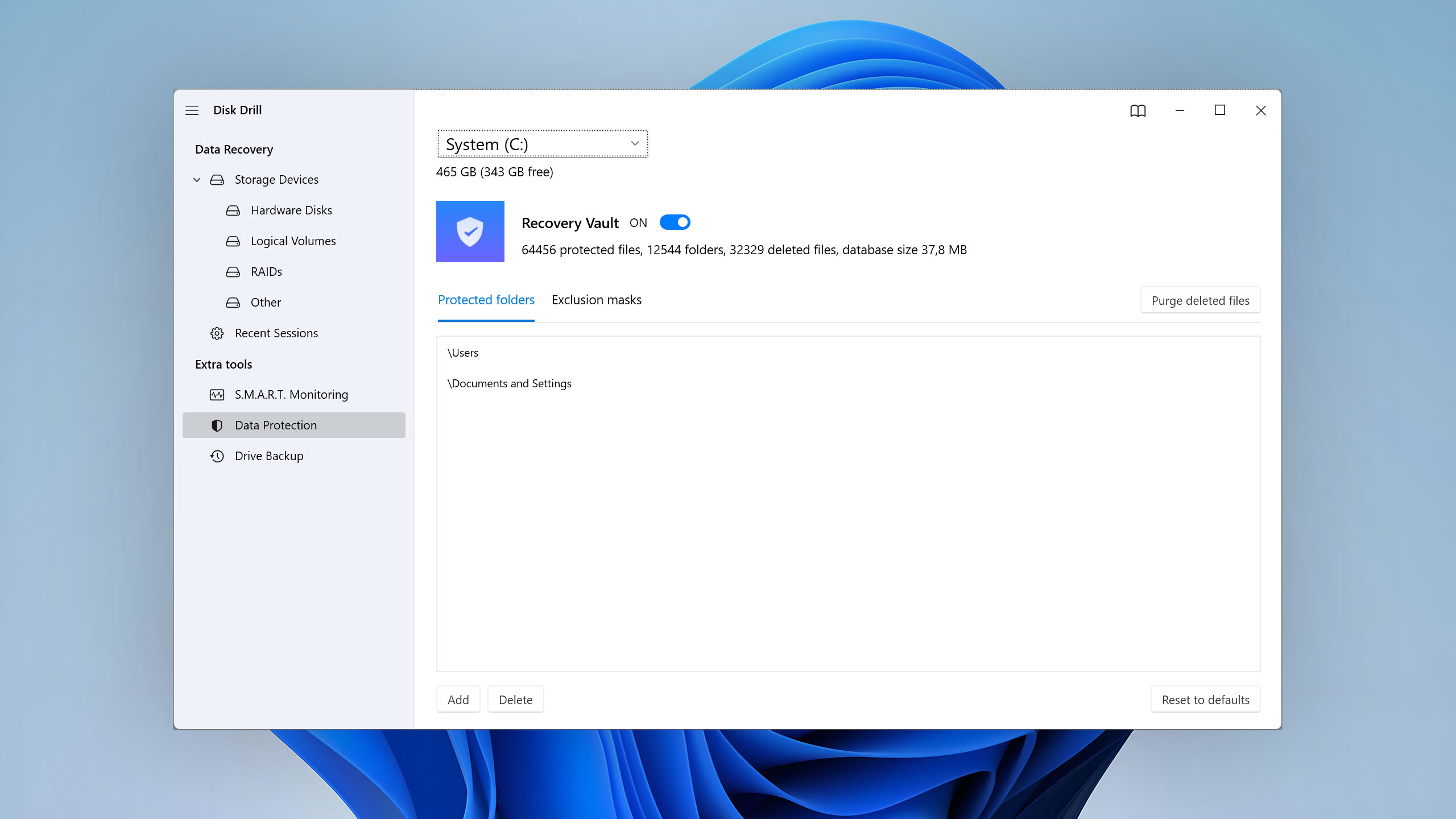
  • Recovery Vault. There is a module, called Recovery Vault, which can store metadata about deleted files to make their recovery easier.

  • Support content. On its YouTube channel, as well as on its blog, there is a vast database of support content that covers all sorts of data loss scenarios and solutions.

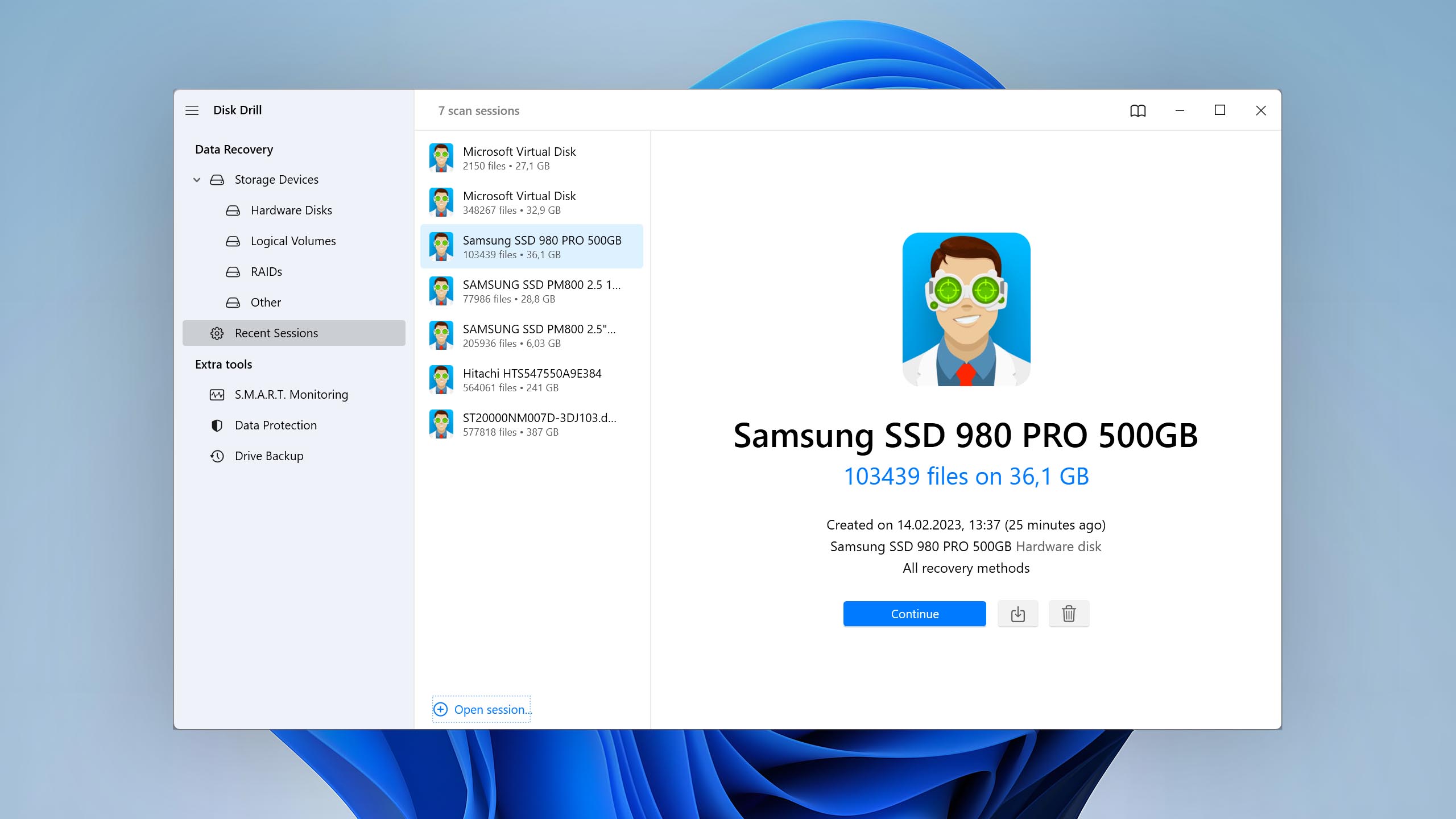
  • Sessions & Auto-Resume. Disk Drill automatically saves scan sessions and backup progress, so you can pause and return later without starting from scratch. If a scan or imaging process gets interrupted due to a system restart, power loss, or drive instability, the software can automatically resume from the last saved point.

  • Cross-platform scanning. Disk Drill allows sharing of scan sessions between Mac and Windows versions of the software.

  • Ease of use. The user can browse found files, preview them, filter them, and more while the software is still scanning.

  • Active disk monitoring. If bad or unreadable disk areas are found during the scanning process, the program recommends the user to create a backup first.

  • Scanning prompts. When there is a chance to find additional data, Disk Drill for Windows automatically prompts the user to scan again.

  • Disk status icons. It's possible to display disk temperatures in the system tray.

  • Free space scan. Disk Drill for Windows can increase scanning speed by focusing on sectors that are marked as empty.

  • Free recovery. The free version of the data recovery software can recover up to 100 MB of data.

  • Recovery chances prediction. The program automatically calculates recovery chances, making it obvious which files are recoverable and which are not.

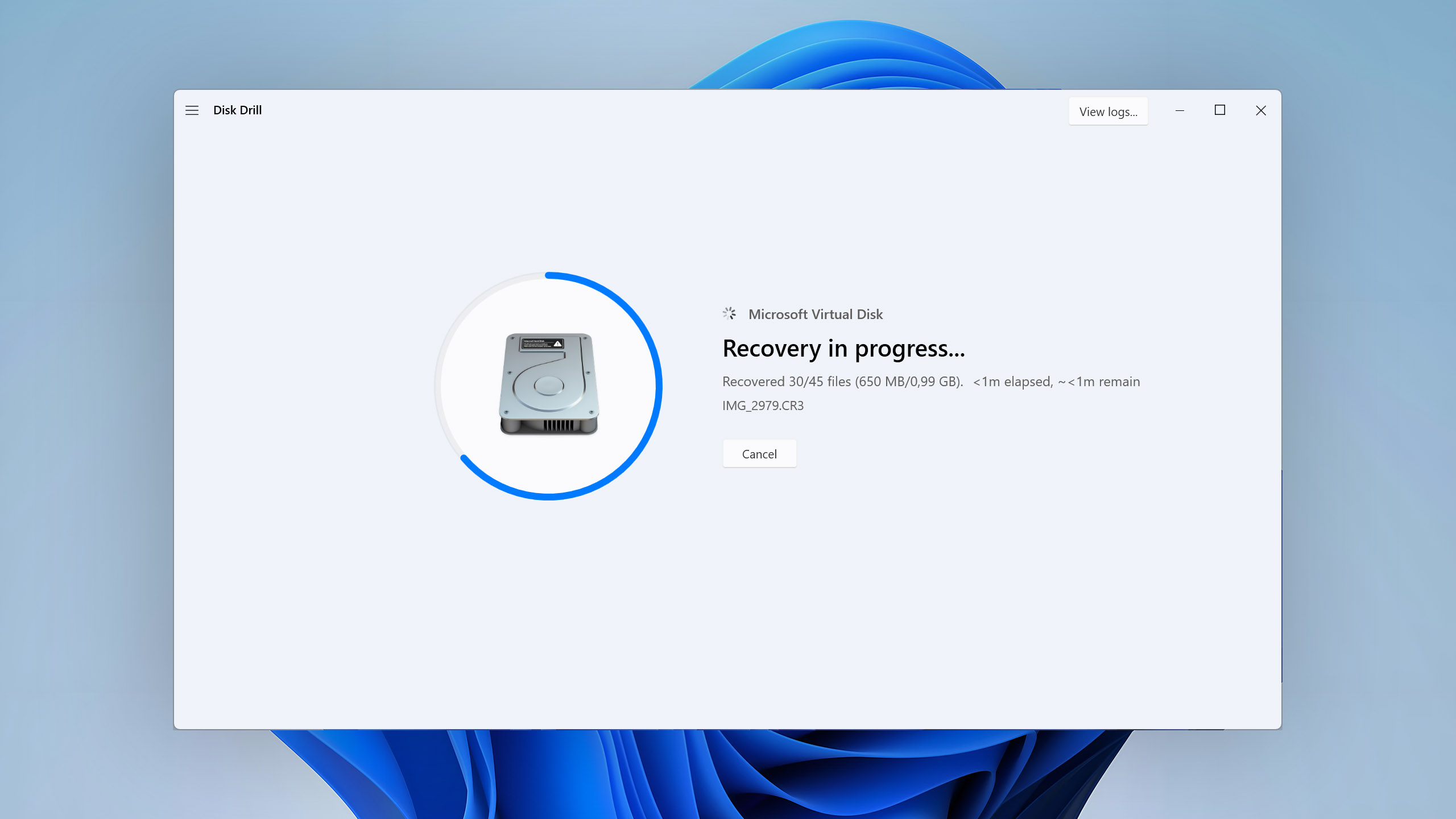
  • Recovery during scan. There's no need to wait for scanning to finish because you can restore your files even while it's in progress.

  • VHD and VHDX support. Disk Drill can scan virtual hard drive images in VHD and VHDX format as if they were regular storage devices.


Cons

  • Phone support. No phone number to call for support is provided.

  • Bootable disks. The software doesn't have an option to create custom boot disks.

  • Photo repair. Disk Drill doesn't the ability to repair corrupted photos.

  • No partition or RAID configuration tools. The software lacks advanced disk management features such as partition editing or manual RAID setup and reconstruction.

  • No direct drive cloning. The software allows you to create disk image files, but it does not support direct drive-to-drive cloning.

Features

Pricing

Starting Price

$89.00 / Annual

Subscription + Lifetime

Distributed as

Freemium

Free Trial

No credit card required

Money back guarantee?

See Plans & Pricing

Recovery Performance

The quality and quantity of data recovery results.

91%

Deep scan

HFS+ partitions

Tips # 1

APFS partitions

Tips # 2

FAT32 partitions

Tips # 3

exFAT partitions

Tips # 4

NTFS partitions

Tips # 5

EXT4 partitions

Tips # 6

91%

Quick scan

HFS+ partitions

Tips # 7

APFS partitions

Tips # 8

FAT32 partitions

Tips # 9

exFAT partitions

Tips # 10

NTFS partitions

Tips # 11

EXT4 partitions

Tips # 12

96%

Real-life recovery challenge

Document formats recovery

Tips # 13

Raw photo recovery

Tips # 14

Video formats recovery

Tips # 15

Scan Results

Recovered file names and folder structure.

Good

100%

Corrupted

0%

Lost

0%

Recovered by Deep Scan

200000

Number of sample files

200000

Device Support

The number of devices that can be recovered.

95%

Device support

Internal and external HDD

Tips # 16

Internal and external SSD

Tips # 17

USB thumb drives / Classic iPods (non-iOS) / FireWire devices

Tips # 18

Memory cards

Tips # 19

iOS devices

Tips # 20

Android devices

Tips # 21

Recovery from RAID arrays

Tips # 22

Unmountable partitions

Tips # 23

NAS (Network-attached storage) RAID devices

Tips # 24

Remote SSH (secure shell protocol) Linux based devices recovery

Tips # 25

Advanced Camera Recovery (ACR)

Tips # 26

Notable Recovery Features

Non-essential capabilities that can help achieve better data recovery results.

91%

Additional scan features

The number of file types supported by signature scan

Tips # 27

Scan for lost partitions

Tips # 28

Recovered files' labeling

Tips # 29

Partial file recovery

Tips # 30

Disk images: scan and recovery

Tips # 31

Windows shadow copies scanning

Tips # 32

BitLocker support

Tips # 33

75%

Other notable recovery features

Overall non-intrusive read-only algorithms

Tips # 34

Effectively filters out corrupted scan results

Tips # 35

Byte-to-byte device backups

Tips # 36

Bootable recovery drive creation

Tips # 37

Convenient scan session management

Tips # 38

Bad sector management

Tips # 39

Recovery chance prediction

Tips # 40

RAID reconstructor

Tips # 41

Disk vitals monitoring and tracking during scan

Tips # 42

Data protection

Tips # 43

Links to in-lab recovery service for physically damaged devices

Tips # 44

Scan speed

Tips # 45

Scan free space only

Tips # 46

Start file recovery without interrupting the scan

Tips # 47

Preview recoverable items without interrupting the scan

Tips # 48

Forensic features

Tips # 49

Network recovery

Tips # 50

Extras

Additional features that may or may not be directly related to data recovery.

4/5

Extras

Disk space mapping

Tips # 51

Disk clean up

Tips # 52

S.M.A.R.T.

Tips # 53

Secure data shredding

Tips # 54

Corrupted video repair tool

Tips # 55

Usability

The intuitiveness and ease of use of data recovery software.

100%

Usability

Ease of use

Easy

Modern user-friendly interface

Tips # 56

Dark mode

Tips # 57

Easy-to-locate features

Tips # 58

Automatic implementation of multiple appropriate scanning methods without user interaction

Tips # 59

Auto-resuming scans of failing drives

Tips # 60

Convenient source selection on start

Tips # 61

Convenient file-by-file preview of recoverable items

Tips # 62

Convenient thumbnail preview of recoverable items

Tips # 63

Mount recoverable items as disk

Tips # 64

Built-in updater

Tips # 65

Multiple view modes in scan results

Tips # 66

Hex view for recoverable items

Tips # 67

Filter recoverable items by type

Tips # 68

Search recoverable items by file names

Tips # 69

Sort results

Tips # 70

Multilingual UI

Tips # 71

Simple deployment

Tips # 72

Auto-resuming backups of failing drives

Tips # 73

Karma

The reputation of the developer and its dedication to improving the software.

95%

Karma

Updated recently

Tips # 74

Update frequency

Tips # 75

Changelog available

Tips # 76

Genuine or clone?

Tips # 77

Brand name popularity

Tips # 78

Online market share

Tips # 79

Maturity

Tips # 80

Extensive knowledge base

Tips # 81

Helpdesk support

Tips # 82

Live chat

Tips # 83

Phone support

Tips # 84

Latest Windows release supported

Tips # 85

Data Recovery Software Ranking Summary

Total Score

1st Place

9

2nd Place

0

3rd Place

0

Details

Deep scan

Quick scan

Real-life recovery challenge

Device support

Additional scan features

Other notable recovery features

Extras

Usability

Karma

Verdict